CopyDisable

Showing posts with label Java. Show all posts

Friday, 7 June 2013

Running tomcat as a normal user on port 80

I had to run tomcat on port 80 as a non root user, but problem was that the non-root users can not bind to port numbers lower than 1024 on Linux. So I was not able to start tomcat as a normal user after changing the HTTP connector port to 80. Normally webservers like Apache runs a process as root user which binds it to port 80, other processes of Apache runs as normal www-data user. The way around was to use authbind linux utility (bind sockets to privileged ports without root) for this purpose.

For this example I am using Ubuntu 12.04 and Tomcat 7 and Oracle jdk1.6.0_45.

I will create one user tomcat and I will run tomcat server using that user.

Creating the user tomcat:

useradd  -d /app/tomcat tomcat

I have deployed tomcat on /app/tomcat directory and created the user using /app/tomcat as home directory (it is not necessary to create the user with the tomcat directory as home directory, but make sure that the user has read/write access)

Change ownership of the /app/tomcat  folder

chown –R tomcat:tomcat /app/tomcat 

Now install authbind

apt-get install authbind

Access  to low numbered ports is controlled by permissions and contents of files in a configuration area, /etc/authbind

I will create an empty file 80 inside the byport folder inside the authbind config directory /etc/authbind. Now I will give permission who can access this 80 file as well as port 80.

touch /etc/authbind/byport/80
chmod 500 /etc/authbind/byport/80
chown tomcat /etc/authbind/byport/80

As I want to run tomcat server as tomcat user on port 80, so I gave tomcat user access to this 80 file.

Now I am going to add the JVM option in catalina.sh file using the JAVA_OPTS

-Djava.net.preferIPv4Stack=true

image

IPv6 stack is preferred by default on a dual-stack machine, as our preference is IPv4, so this setting is done through the option -Djava.net.preferIPv4Stack=true .

Now I will write the init.d script for tomcat, using the authbind to run tomcat server as non-root tomcat user.

/etc/init.d/tomcat file:


CATALINA_HOME="/app/tomcat"

case "$1" in
start)
tomcat_id=$(ps -ef | grep $CATALINA_HOME | grep -v grep | awk '{print $2}' | head -n 1)
if [ -n "$tomcat_id" ]
then
   echo "Tomcat is already Running with PID:" $tomcat_id
else
   echo "Starting tomcat from $CATALINA_HOME"
   sudo -u tomcat authbind --deep $CATALINA_HOME/bin/startup.sh
fi
;;
stop)
tomcat_id=$(ps -ef | grep $CATALINA_HOME | grep -v grep | awk '{print $2}' | head -n 1)
if [ -n "$tomcat_id" ]
then
   echo "Stopping tomcat from $CATALINA_HOME"
   sudo -u tomcat authbind --deep $CATALINA_HOME/bin/shutdown.sh
else
   echo "Tomcat is not running"
fi
;;
status)
        tomcat_id=$(ps -ef | grep $CATALINA_HOME | grep -v grep | awk '{print $2}' | head -n 1)
        if [ -n "$tomcat_id" ]
        then
                echo "Tomcat is Running with PID:" $tomcat_id
        else
                echo "Tomcat is not Running......."
        fi
;;
*)
echo $"usage: $0 {start|stop|status}"
exit 3
;;
esac


We can start and stop tomcat using:

service tomcat start

service tomcat stop

To auto start tomcat at system reboot run as root:

update-rc.d tomcat defaults

That’s it Smile , also we can use the same process to run glassfish server as non-root user on port 80.

Monday, 15 August 2011

Profiling

Many times we get OutOfMemoryError in our glassfish logs. When no more memory is remaining in the Java process, it throws the OutOfMemoryError exception. This problem may indicate memory leak in the application. But not every OutOfMemoryError occurs due to memory leak, it may be due to load also. Some application needs more memory to run and this may also cause the OutOfMemoryError error.
To profile I will first take a heap dump using jmap, heap dump is a list of objects in the memory of JVM as well as the content of the memory occupied by those objects.  Then I will use Heap Analysis Tool (HAT) to deal with the heap dump. The Heap Analysis Tool (HAT) helps to debug unnecessary object retention by providing a simple way to browse the object topology in a heap snapshot.
jmap and jhat is available with Java SE 6.

Step1:
Find the process id of the java process we are going to take heap dump. We can do that using Linux ps command or from Windows task manager or we can use the jps (Java Virtual Machine Process Status) tool.

Step2:
Use jmap to generate the heap dump.


Step3:
Now start jhat to read the heap dump.

Step4:
Once jhat is ready it starts a web server, (the default port for the web server is 7000, and we can change it by command line option of jhat). We can use a web browser to inspect the heap dump.
Our jhat web server is running in the computer 172.16.0.103 on port 7000


Some examples of using jhat:

1) All Classes (excluding platform):
The default page shows all classes present in the heap, excluding platform classes. By clicking on the name of a class, we can query the Class
Link to run for this query:
http://172.16.0.103:7000/


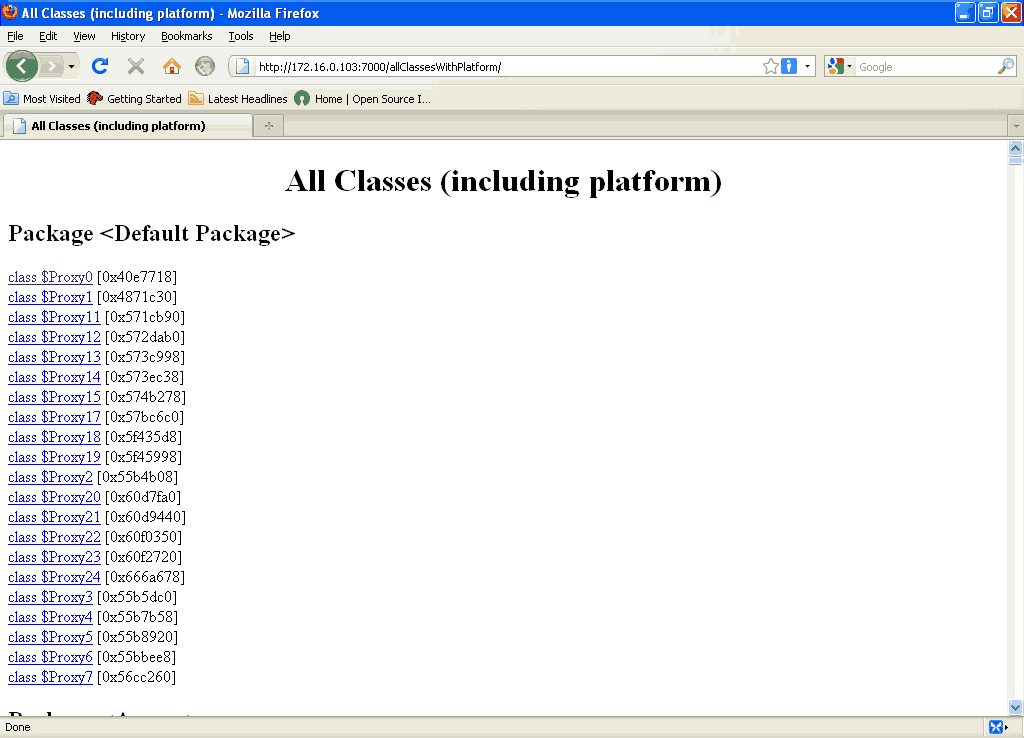
2) All Classes (including platform):
This query will also show the platform classes.
Link to run for this query:
http://172.16.0.103:7000/allClassesWithPlatform/


3) Class Query:
We can use this query to view information about a class.
Suppose we want the information for the class org.mkcl.ef.AO.dao.AORegistrationDAO, use the link:
http://172.16.0.103:7000/class/org.mkcl.ef.AO.dao.AORegistrationDAO


4) Instances Query
It shows all instances of a class.
To see all the instances of the class com.mysql.jdbc.Buffer, use the link
http://172.16.0.103:7000/instances/com.mysql.jdbc.Buffer


5) Object Query:
Object query shows information about an object that was in the heap.
To display information about the object 0×6a8b880, use the link:
http://172.16.0.103:7000/object/0×6a8b880


6) Rootset query:
This query gives reference chains from the rootset to a given object.
For the object 0×6a8b880, use the link:
http://172.16.0.103:7000/roots/0×6a8b880


7) Objects reachable from a given object:
It shows the transitive closure of all objects reachable from a given object.
Objects reachable from 0×03b60518
http://172.16.0.103:7000/reachableFrom/0×03b60518


8) Instance Counts for All Classes (excluding platform):
It shows the count of instances for every class in the system, excluding platform classes.
http://172.16.0.103:7000/showInstanceCounts/

9) Instance Counts for All Classes (including platform):
It shows the count of instances for every class in the system, including platform classes.
http://172.16.0.103:7000/showInstanceCounts/includePlatform/

10) All Roots Query:
This query shows all members of the rootset.
http://172.16.0.103:7000/showRoots/


11) Heap Histogram:
It shows the number of allocated objects at the time the jmap was executed.
To view the heap histogram use the link:
http://172.16.0.103:7000/histo/


12) Object Query Language (OQL) query
We can use Object Query Language (OQL is SQL-like query language to query Java heap, OQL allows to filter/select information wanted from Java heap.) using the link:
http://172.16.0.103:7000/oql/


Help for using OQL can be found in the link http://172.16.0.103:7000/oqlhelp/
Using the above method we can analyze the heap and may find out the probable reason of the OutOfMemoryError.


জয় আই অসম,
প্রণব শর্মা